> For the complete documentation index, see [llms.txt](https://wiki.inels.com/llms.txt). Markdown versions of documentation pages are available by appending `.md` to page URLs; this page is available as [Markdown](https://wiki.inels.com/inels-bus/technical-manual-products/thermo-regulators/grt3-70.md).
# GRT3-70
Glass room thermo-regulator
## Overview of devices
{% hint style="info" %}
*An overview of the product design and usage. Also includes circuit diagrams, terminal details, etc.,*
{% endhint %}
### Image
### Key Features
* Glass room thermo-regulator GRT3-70 is part of a comprehensive range of glass iNELS control units for apartments, and guest room management systems (GRMS) and serves to regulate the temperature in the room.
* Comes with a bigger display and a new design compared to the previous version GRT3-50.
* GRT3-70 thermo-regulator has a display for displaying the current room temperature and desired temperature. To adjust the required temperature, it is possible to use the touch buttons with symbols "-" and "+".
* GRT3-70 is also suitable for controlling fan coils and fan speed can be easily adjusted by using the touch buttons with symbols.
* Thermo-regulator GRT3-70 also features touch buttons whose function can be adjusted by software, for example, fan coil on/off, heating/ cooling or comfort temperature for heating or cooling.
* The thermo-regulator is equipped with an integrated temperature sensor for ambient temperature measurement.
* The glass room thermo-regulator is a design component of the iNELS system and is available in elegant black (GRT3-70/B) and white (GRT3-70/W) versions.
* Engraving of symbols is possible upon request.
* Individual symbols can be illuminated.
* GRT3-70 is designed for mounting into an installation box.
## Exemplary circuit diagram/ Wiring Diagram
## Compatibility chart ( CU, minimal FW version and Integration)
{% hint style="info" %}
*The chart illustrates the compatibility between digital room thermo-regulator and various central units, firmware versions, and integration options.*
{% endhint %}
| SL No | Support Central units | Support FW | Support in MQTT | Support in HASS |
| ----- | --------------------- | ----------------- | --------------- | --------------- |
| 1 | CU3-01M | GRT3-70\_01.00.04 | NA | NA |
| 2 | CU3-02M | GRT3-70\_01.00.04 | NA | NA |
| 3 | CU3-07M | GRT3-70\_01.00.04 | Yes | Yes |
| 4 | CU3-08M | GRT3-70\_01.00.04 | Yes | Yes |
| 6 | CU3-09M | GRT3-70\_01.00.04 | Yes | Yes |
| 7 | CU3-10M | GRT3-70\_01.00.04 | Yes | Yes |
## Programming in iDM
**Introduction**
iNELS Design Manager, or IDM3, is for programming iNELS units. This software serves as the platform for configuring device parameters, defining functions, and executing the programming required for iNELS units.
Device parameters, such as sensor range and thresholds, backlights, and operational modes, can be easily adjusted within the IDM3.
The process of programming in IDM3 typically involves defining functions and establishing logical connections between different devices. This allows for the creation of automation scenarios and the implementation of intelligent control strategies.
**Starting up**
Select the "***blue control icon"*** as shown in ***Fig 1*** > Clicking on the option ***"New project from default template“*** allows you to create a new project from a predefined template.
Select the "***Device manager"*** (***Fig 1***)> Add "***New unit*** "> Select the central unit > Add "***New*** ***unit"***>Select the "***Internal-Master/ BUS">*** Add "***New unit*** "> Add the devices> Click on the devices to see the "***Parameters"***.

### **Parameters**
**Parameters** in the iNELS devices refer to the measurable factors or characteristics that define the behavior or performance of the device. These could include electrical properties, physical dimensions, environmental conditions, and various other specifications depending on the type of device.
These are settings specific to individual devices within your automation system. The specific parameters of the GRT3-70 in the iDM as shown in ***Fig.2.***
Fig: 2 Parameters of GRT3-70
Clicking on the GRT3-100 (***Fig.2***), will navigate to the selected firmware, address, name, and description, along with other parameters as described below :
1. **Enable temperature sensor**
Enables the built-in temperature sensor of the GRT3-70
* Enabled → internal temperature is used
* Disabled → internal sensor ignored
5. **Correction range= Temperature correction**\
Allows calibration of the measured temperature.
* Range: `-3 °C … +3 °C`
* Used to compensate installation influences (wall, airflow, sunlight)
6. **Use First Click for Backlight**
**Backlight activation by first touch**\
If enabled, the first button touch activates only the backlight, and the second touch performs the action.
7. **Use Beeper - Acoustic feedback**\
Defines sound feedback on button press.
Options:
* No beeping
* Short beep
* Long beep
8. **Light Setup- Light control mode**\
Defines how the backlight is controlled.
* Use light limit → depends on ambient light
* Always on
* Always off
9. **Backlight Limit- Light intensity threshold (lx)**\
Defines the ambient light level below which the backlight turns on.
Range: `0 – 255 lx`
10. **Backlight Limit Hysteresis** \
Prevents flickering by defining a hysteresis value for the light sensor.
11\. **Default Backlight Color RGB backlight default color**\
Defines the default LED color for buttons.
Available colors:
* Blue
* Red
* Green
* White
* Custom (via logic)
12. **Backlight Level** \
Defines the intensity of the backlight LEDs.
13\. **Use Proximity Automatic Control**\
Automatically activates the display/backlight when a hand is detected near the device.
14\. **Use Backlight Automatic Control**
Backlight is controlled automatically based on proximity and light sensor.
15\. **Proximity Light Timeout**\
Time (in seconds) after which the backlight switches off if no interaction is detected.
16. **Proximity Sensitivity**
Detection distance: Defines the sensitivity of the proximity sensor.
Range: `80 – 200 mm`
17. **Use Buttons to Control H/C Area**
Enables button-based control for heating or cooling controller.
18. **True State Button**
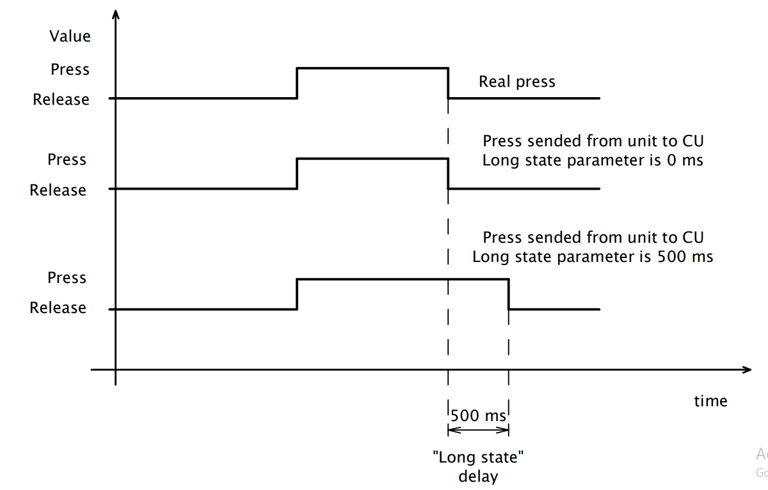
**True state button:** True state is a crucial parameter designed to address issues related to false button presses caused by interference in your system. When configured, this parameter dictates the signaling delay to the Central Unit (CU) once the button is pressed. This delay serves as a protective measure against erroneous inputs—specifically, if a false press occurs within a duration shorter than the time specified in the True State parameter, the information will not be transmitted to the CU. Consequently, the unit will intelligently disregard such short-lived signals, ensuring that only valid button presses are acknowledged and acted upon. This feature enhances the reliability and accuracy of your system, especially in environments prone to interference, offering a more robust and secure user experience.
19. **Long State Button**
Long State plays a pivotal role in mitigating challenges associated with BUS interference and slow communication in your system. Specifically, this parameter sets the signaling delay to the Central Unit (CU) when a button is released. In installations where BUS communication faces sluggishness due to interference, the Long State parameter proves invaluable.In scenarios where a button press is short and the BUS communication is slow, there might be a risk of the unit not being able to transmit the information to the CU in a timely manner, especially regarding the acknowledgment of a press and subsequent release event. To address this concern, the Long State parameter comes into play. It extends the press time by the specified value, allowing the unit to compensate for the sluggish BUS communication. This ensures that the CU receives the necessary information regarding the button press and subsequent release, even in situations where the standard communication speed may be compromised. As a result, Long State contributes to the reliability and responsiveness of your system, offering a solution tailored to environments with BUS-related challenges.
20\. **Use Button SW1 – SW7**
Each button can be enabled or disabled independently.
### Device Description
1. **SW1-SW7:**
* A "switch" could refer to a virtual or physical switch that controls a specific function within the GRT3-70. For example, you might have switches to Fan, heating, or other smart devices in your installation. These switches can be programmed and configured within the iNELS Design Manager to customize the behaviour of your system.
* The set of actions in SW “ short press, short release, long press, long release, and permanent action can be used with various functions.
**2. SW1/Red, Green, Blue-SW7 /Red, Green, Blue:** SW1 to SW7 Red, Green, and Blue outputs are used as LED actuator channels to provide visual feedback of events or device states associated with the corresponding switch button.
These LED channels are typically wired to indicate the current status of a controlled device, ensuring the user receives immediate confirmation of an action triggered by the switch.
Example – Fan Control Feedback:
When the fan is ON, the Green LED is activated at 100% brightness, indicating active operation.
When the fan is OFF, the Red LED is activated at 100% brightness, indicating the inactive state.
Blue LED can be optionally used for additional states such as standby, error, or custom logic (if required by the project).
The LED status is driven by feedback signals from the controlled device, not merely by the button press itself. This ensures that the LED indication always reflects the actual device state, even if the device is controlled from another source (scene, automation, app, or integration).
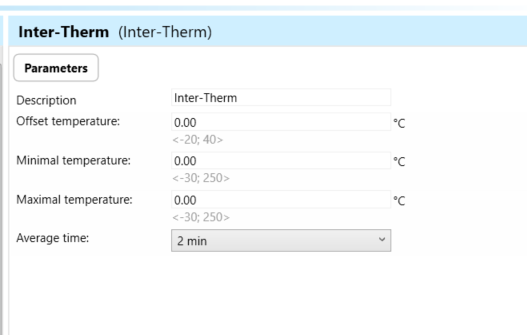
3\. **Inter-Therm:** The feature that allows you to configure or monitor the temperature data from the internal temperature sensor in the GRT3-70. You can use this information to automate climate control, adjust heating or cooling systems, or trigger alerts based on temperature thresholds.
* The set of actions “Sensor maximal value exceeded, Sensor maximal value exceeded back, Sensor minimal value exceed, Sensor minimal value exceed back, Sensor value change and permanent action can be use with various functions.
* **Offset Temperature:** Offset temperature refers to a user-configurable adjustment applied to the temperature readings from the connected sensor. It allows users to compensate for any systematic errors or inaccuracies in the temperature measurements. The offset temperature parameter enables fine-tuning of the temperature readings to improve accuracy and alignment with reference values.
* **Minimal Temperature**: The minimal temperature parameter indicates the lowest temperature that the temperature sensor is capable of measuring accurately within its specified operating range. This value is crucial for ensuring that the sensor can detect and report temperatures accurately, especially in environments where temperatures may drop to lower levels.
* **Maximal Temperature**: Conversely, the maximal temperature parameter indicates the highest temperature that the temperature sensor is capable of measuring accurately within its specified operating range. This value is essential for ensuring that the sensor can withstand high temperatures without damage and accurately report temperature readings in environments with elevated temperatures.
* **Average Time**: Average time refers to the duration over which temperature measurements are averaged to calculate a representative temperature value. This parameter is relevant in scenarios where temperature fluctuations occur rapidly, and averaging measurements over time helps smooth out variations to provide a more stable and accurate temperature reading.
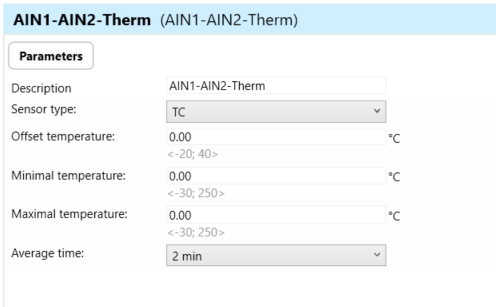
4. **AIN1-AIN2 Therm:** An analog input for temperature typically refers to a feature in a GRT3 device that can accept and process analog signals from temperature sensors. Analog signals in this context represent a continuous range of values that correspond to temperature variations. For example, a temperature sensor might output an analog voltage or current signal that changes proportionally with the temperature it's measuring. The analog input signals are converted into temperature readings. This feature allows for more precise control or monitoring of temperature within a system. It's commonly used in situations where a high level of accuracy is required for temperature-sensitive applications, such as climate control.
* **Sensor Type**: This parameter defines the type of temperature sensor connected to the AIN1- AIN2- Therm input. It specifies the types of temperature sensors, such as TC/TZ . The sensor type parameter ensures compatibility between the connected sensor and the device, allowing accurate temperature measurement.
Please refer the other parameters from Inter-Therm
**5. DIN1:** Digital input typically refers to a feature in a GRT3-70 device that can accept and process binary signals, where the signal is either high (1) or low (0). Digital inputs can be used to receive signals from various sensors or devices that provide binary information. For example, a digital input could be used to connect a motion sensor or a door/window sensor. When motion is detected or a door is opened, the sensor sends a digital signal (1), and when there's no motion or the door is closed, it sends a different digital signal (0). iNELS Design Manager configures actions or responses based on the state of these digital inputs. For instance, you could set up automation rules to turn on lights when motion is detected (digital input goes to 1) or send an alert when a door is opened (digital input goes to 1).
* **Invert Input:** "Invert input" refers to a feature that allows users to invert or reverse the logic of the digital input signal received by the GRT3- 70 device. In other words, when the invert input feature is enabled, a logic HIGH signal (e.g., 1 or ON) at the input would be interpreted as a logic LOW signal (e.g., 0 or OFF), and vice versa.
* **Purpose**: This feature provides flexibility in configuring the behavior of the digital input signal. It can be useful in scenarios where the external device or sensor connected to the GRT3 operates with an inverted logic compared to the default interpretation of the GRT3 device.
* **Split Strictly Long/Short Press**: "Split strictly long/short press" refers to a feature that distinguishes between long and short press actions on the digital input of the GRT3 device.
* **Long Press**: Holding the digital input signal for a predefined duration (longer than a specified threshold) before releasing it triggers a long press action.
* **Short Press**: Briefly activating the digital input signal without holding it for the predefined duration triggers a short press action.
* **Purpose**: This feature allows users to assign different actions or functions to short and long press events on the digital input. It enhances usability and control flexibility by providing distinct functionalities for different durations of input activation
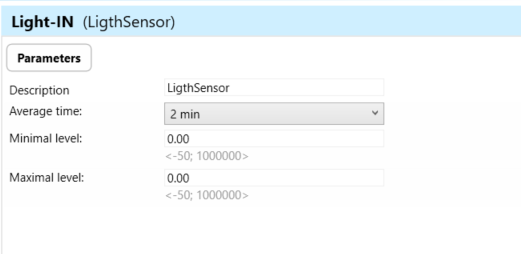
**6. Light-IN:** refers to the luminance sensor which involves the integration with lighting control systems and uses the sensor's readings to dynamically control artificial lighting sources.
* **Average Time**: Average time refers to the duration over which the luminance sensor averages multiple readings to calculate luminance value. This parameter helps to smooth out fluctuations in light levels caused by factors such as changes in natural light, flickering, or sensor noise.
* **Minimum Level**: Minimum level refers to the lowest luminance threshold at which the GRT3 device will activate or adjust artificial lighting sources in response to changes in light levels detected by the luminance sensor. When the measured luminance falls below the minimum level, the GRT3 device initiates appropriate actions to increase the brightness of artificial lighting sources.
* **Maximum Level**: Maximum level refers to the highest luminance threshold at which the GRT3 device will deactivate or adjust artificial lighting sources in response to changes in light levels detected by the luminance sensor. When the measured luminance exceeds the maximum level, the GRT3 device initiates appropriate actions to decrease the brightness of artificial lighting sources.
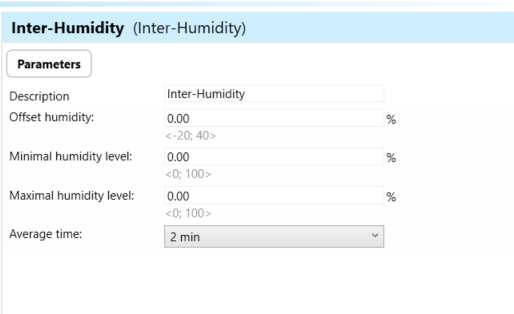
**7. Inter-Humidity:** The internal humidity sensor is a component within the GRT3 device that measures the moisture content in the surrounding environment. This sensor provides data on humidity levels, allowing the system to make informed decisions or trigger actions based on those readings. For example, if the internal humidity sensor detects high humidity levels, the system may trigger ventilation or air conditioning to maintain a comfortable environment. Set up rules or automation scenarios based on the readings from the internal humidity sensor.
* O**ffset Humidity**: Offset humidity refers to an adjustment applied to the measured humidity value to account for any discrepancies or inaccuracies in the sensor readings. It allows users to calibrate the humidity readings to ensure accuracy.
* **Minimal Humidity Level:** Minimal humidity level denotes the lowest acceptable humidity threshold in the environment being monitored. Users can set a minimum humidity level to trigger alerts or actions if the humidity falls below this threshold.
* **Maximal Humidity Level**: Maximal humidity level indicates the highest acceptable humidity threshold in the monitored environment. Users can set a maximum humidity level to trigger alerts or actions if the humidity exceeds this threshold.
* **Average Time**: Average time refers to the duration over which the device calculates the average humidity value.Users can specify the time interval over which the device computes the average humidity, which can provide a more stable and accurate representation of the environmental conditions.
**8. Dew-Point:** The dew point is the temperature at which air becomes saturated with moisture and dew or frost begins to form. It's the point at which the air holds the maximum amount of water vapor it can, and any further cooling will result in the condensation of water vapor into liquid water or frost. In climate control system, monitoring the dew point can be important for maintaining a comfortable indoor environment and preventing issues like condensation on windows or roof surfaces.
* **Minimal Temperature**: Minimal temperature refers to the lowest acceptable temperature threshold in the environment being monitored.
* **Maximal Temperature**: Maximal temperature indicates the highest acceptable temperature threshold in the monitored environment.
**9. Proxi IN:** Input for proximity sensor depends on the input it will give action to trigger the backlights or any other functions
**10. Backlight-OUT:** Refers to the element related to the backlighting of all point-illuminated LED in buttons/switches on GRT3 devices. The set of actions “Digital input/output switch ON, “Digital input/output switch OFF and permanent action can be used with various functions.
**11. Disable-Buttons-DOUT**: This parameter is used for disabling buttons, preventing those buttons from triggering specific actions or functions within a system. The set of actions “Digital input/output switch ON, “Digital input/output switch OFF and permanent action can be used with various functions.


.png?alt=media&token=c86a2c7f-726b-46fe-b4aa-8c5fb1f9bc47)